
Working with data
Printing labels from Excel and CSV
Connect Excel or CSV data to text, barcodes, and other label elements in Studio. Each file row is a separate record that you can review before interactive printing.
Supported formats
Studio supports Excel .xlsx and CSV .csv files. The older Excel .xls format is not supported. Open an older file in Excel or a compatible application and save it as .xlsx before connecting it.
Prepare the table
The first row must contain clear, unique field names, such as SKU, Product name, Price, Barcode, and DataMatrix. Each subsequent row is a separate data record for filling and printing a label.
Do not put a report title, blank rows, or other text before the header row. If a value must retain leading zeros, such as SKU 00125, format that Excel column as text before saving.
The screenshots below show the Russian interface.

Excel: use the first worksheet
Studio reads only the first worksheet in an Excel workbook. Put the required table on that worksheet, with column names in its first row. Other worksheets are not processed or offered for selection.
CSV: check encoding and delimiter
Studio attempts to detect the CSV encoding and delimiter automatically. If detection succeeds, the data loads without additional steps. If it fails, enter the encoding and delimiter when prompted, then load the data again.
After opening the file, check that characters display correctly, values are split into separate columns, and field names match the first row.
Connect the file
- Open Data and printing (Данные и печать).
- Select an Excel or CSV file.
- Wait for the table to load.
- Check the column names and several records.
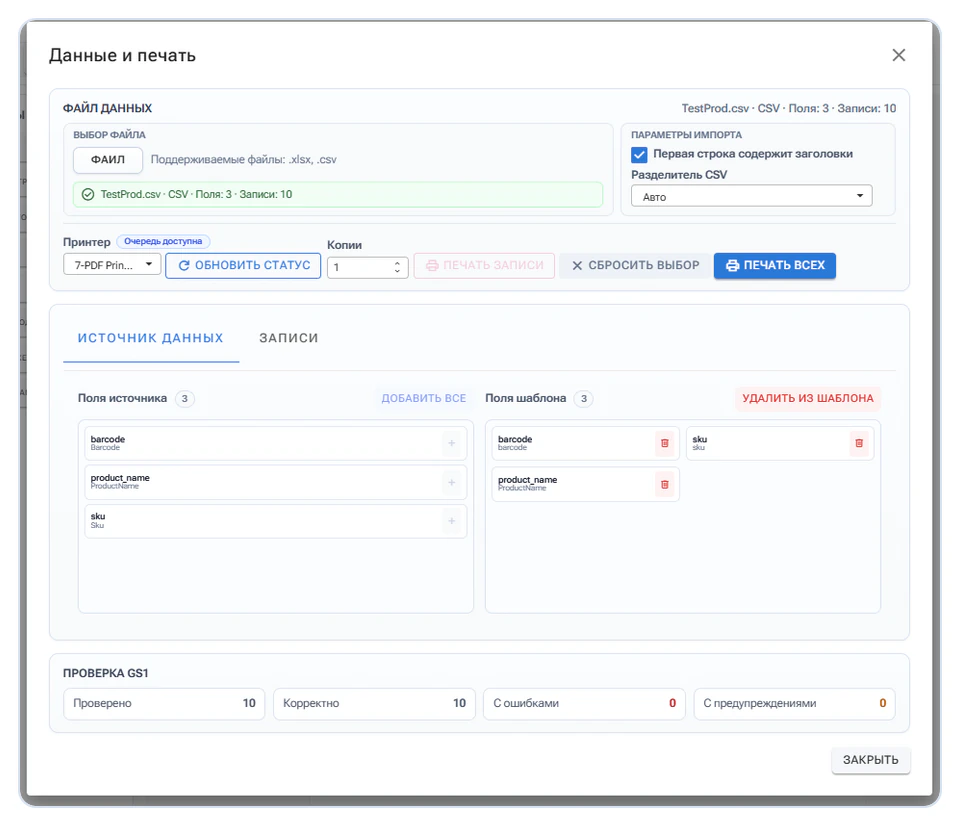
The file columns appear in Source fields (Поля источника).
Move data fields into the template
Select the fields you need in Source fields and move them to Template fields (Поля шаблона). Those fields can then be bound to template elements.
Moving a field does not create text, a barcode, or any other visual element on the label. Create the template elements separately. You only need to move columns that are actually used on the label.
Create elements and bind their data
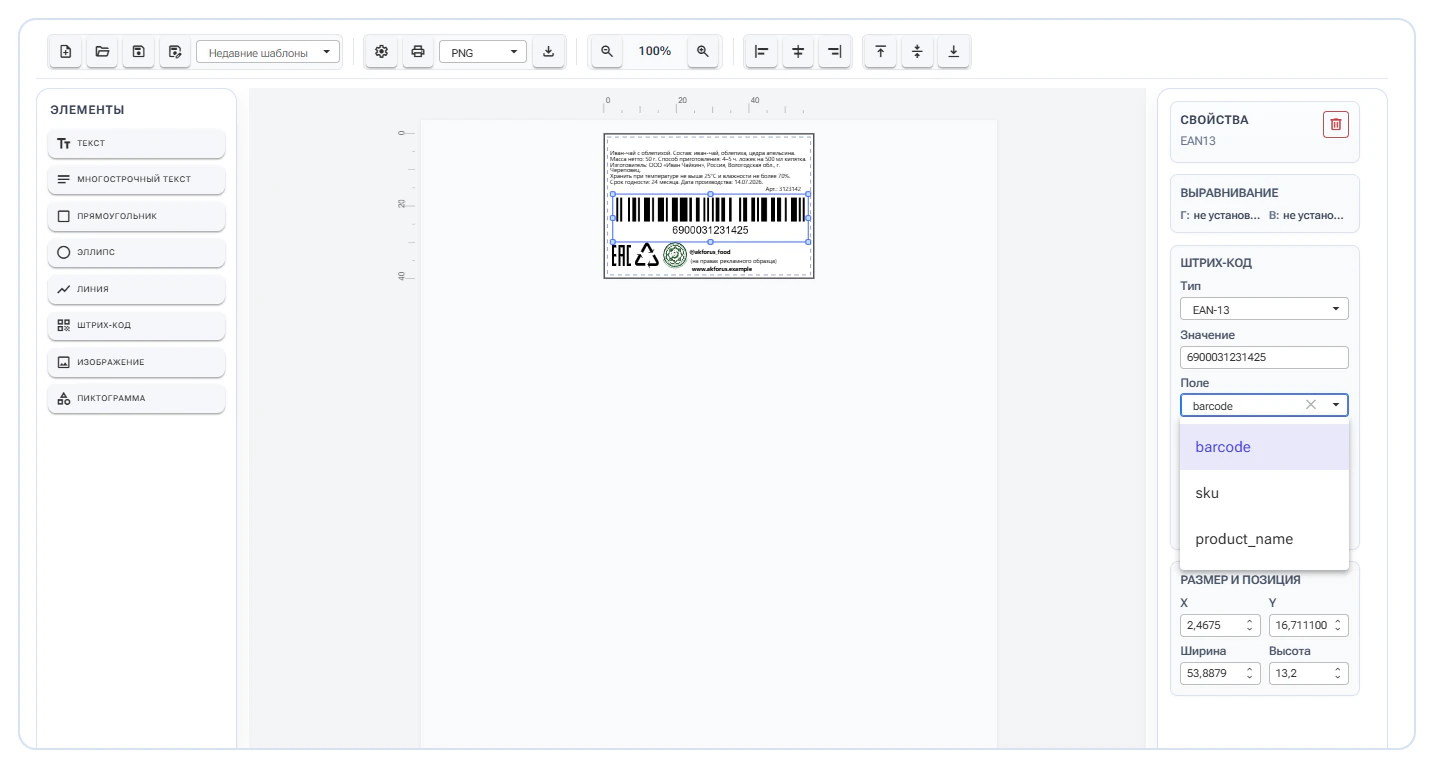
Add the required elements, such as text, multiline text, a linear barcode, QR code, Data Matrix, or an image. Select an element and choose the data field in its properties.
A field can be used in more than one element. For example, the same SKU can be displayed as text and encoded in a barcode.
Check several records
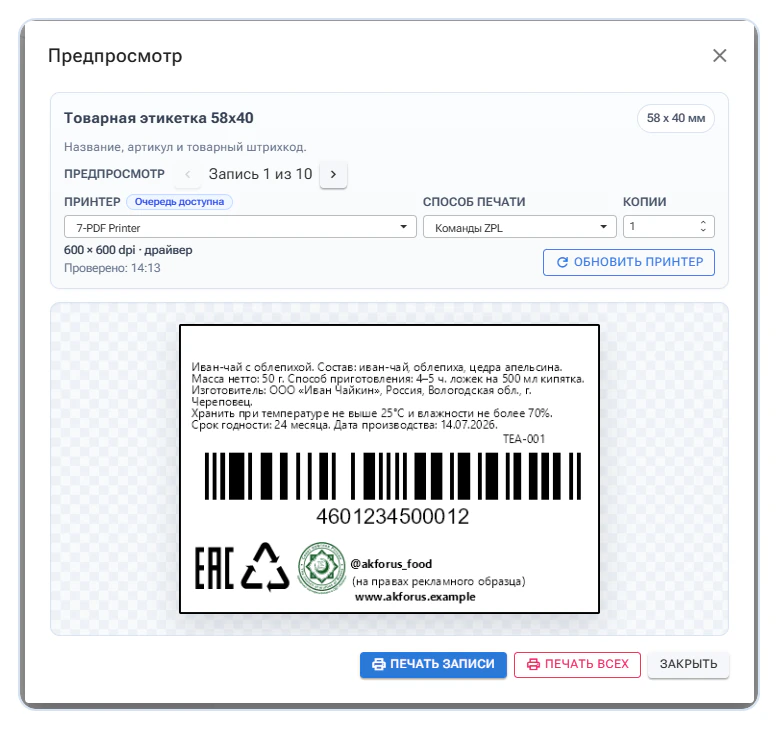
Open the data preview and review multiple records, not just the first row. Check that:
- Values appear in every bound element.
- Long values fit within the label.
- Leading zeros are preserved.
- Barcodes are generated correctly.
- Required elements have no empty values.
Use a new file with the same template
In a later session, open the saved template and connect a new file containing current data. Keep the same field names to preserve existing bindings. If a column name changes, check the corresponding template field and its element bindings.
Troubleshooting
The CSV appears as one column
The delimiter was detected incorrectly. Enter the CSV parameters manually and reload the data.
Characters display incorrectly
Select the correct CSV encoding.
Excel does not show the expected data
Check that the table is on the first worksheet and the file is saved as .xlsx.
Leading zeros have disappeared
Format the relevant Excel column as text before saving the file.
A field does not appear on the label
Check that it was moved from Source fields to Template fields and bound to the required element property.
Long text does not fit
Review actual records, increase the element size, or adjust the font size before printing.