
Operations
AxioLabel Studio licensing and activation
Activate a perpetual Studio license and add purchased extensions using their separate registration keys.
What the license provides
A Studio license grants a perpetual right to use the application, with no time limit after activation. The base license covers one installed Studio instance and includes one concurrent operator session.
Updates for an activated Studio installation are free without a time limit.
What you need for activation
- An installed copy of Studio.
- A registration key.
- The customer's name and email address.
- A tax identification number if required for your license.
- An internet connection on the computer.
The registration key is supplied after purchasing the right to use the application. Do not publish the key or share it with anyone who is not authorized to use the purchased license.
Activate Studio
- Open Studio.
- In the left menu, open Help (Справка) → License (Лицензия).
- Select Activate (Активировать).
- Select Studio as the product.
- Enter the registration key.
- Enter the customer's name and email; provide the tax identification number if required.
- Send the online request and wait for confirmation that activation succeeded.
The Product code (Код продукта) list shows only available products and extensions that have not yet been activated for this Studio instance. Items that are already activated are not shown.
The screenshot below shows the Russian interface.
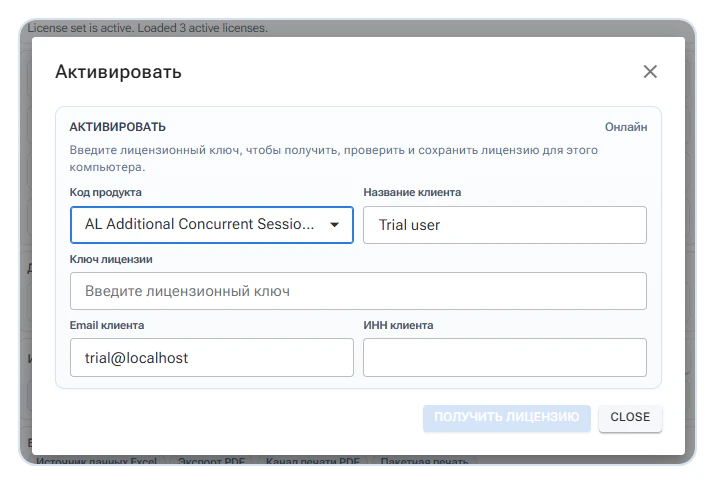
After a successful request, the license is saved locally. The License window shows the active status and product, and the available number of simultaneous sessions is recalculated.
Activation removes trial limitations and makes program updates available.
Computer binding
The license is bound to the computer where Studio is installed. Do not use one registration key to activate independent installations on several computers.
Installing an update over the existing version does not change the license binding. Your license, settings, and user templates are retained.
Moving to another computer
Before replacing the computer or moving the Studio installation, contact support@axiolabel.ru. Support will check the license and explain the transfer procedure. Do not activate the existing key on the new computer before the transfer has been agreed.
Activate an extension
Each AxioLabel extension is purchased and activated with a separate registration key.
- Open Help → License.
- Select Activate.
- Select the required extension.
- Enter its registration key and customer details.
- Send the online request.
- Check that the product appears in the license list.
An extension key does not replace the base license key. The corresponding Studio base license must be activated before the extension can be used. If you purchased several extensions, activate each key separately.
See Extensions for the available add-ons.
Additional workstations
The base Studio license includes one concurrent operator session. Additional workstations are purchased as extensions. They let staff connect to the installed Studio instance through a browser over the organization's local network, without installing Studio on each additional computer.
Studio limits simultaneous connections according to the activated extensions. The available session count is updated in the License window after activation.
If activation fails
Check the registration key, the selected product, the required customer details, the internet connection, and whether the base license was activated before the extension.
If the key was used on another computer, is blocked, or is still rejected, contact support@axiolabel.ru with the product name and error description. Do not send the full registration key in public messages.
See the FAQ for more answers. To purchase a license or extension, contact sales.