
Getting started
Getting started with AxioLabel Studio
Open the installed Studio interface, check that the application is ready, and review the license status.
How Studio works
AxioLabel Studio is registered as a Windows service during installation. The service starts automatically and runs in the background.
The interface opens in a browser, but Studio is not a cloud service. Its components run locally on the computer where Studio is installed. Closing a browser tab or window does not stop the service.
Open the interface
- Open the Windows Start menu.
- Select AxioLabel Studio.
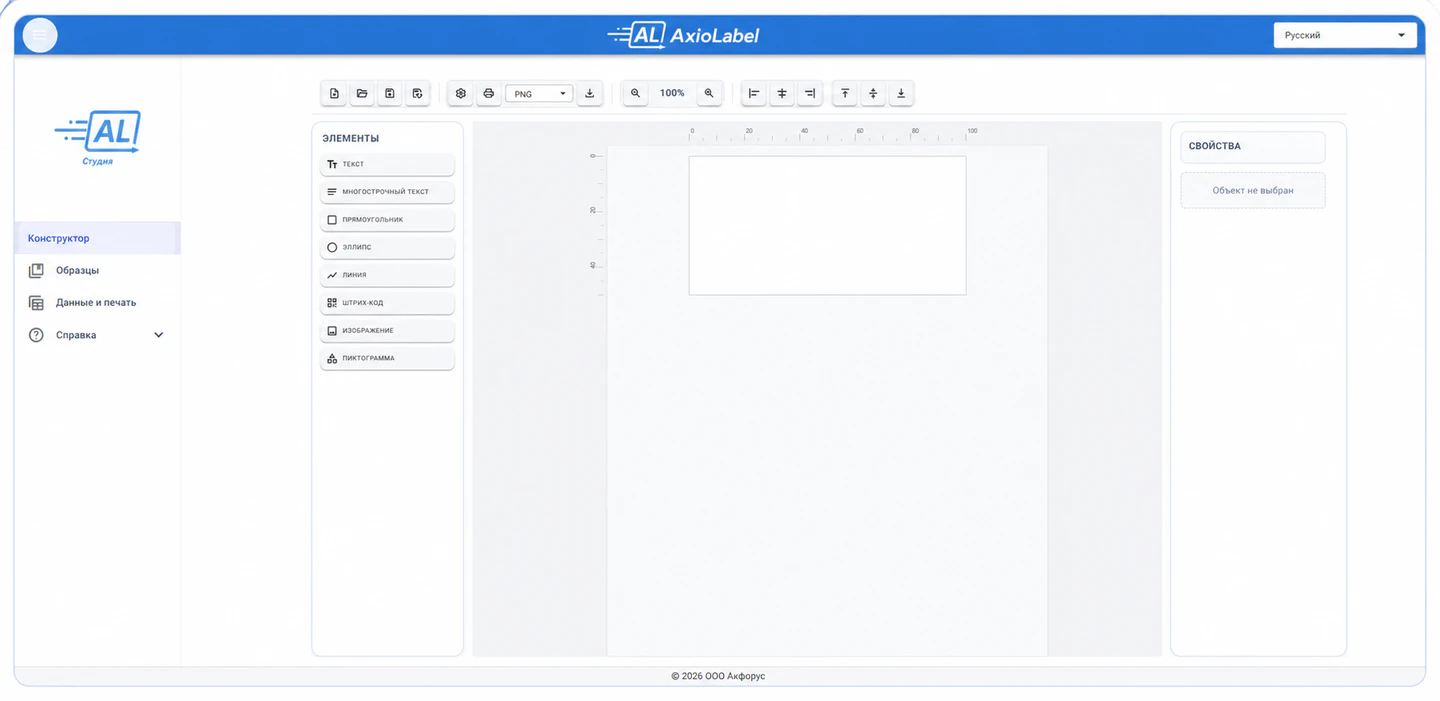
- Wait for the local interface to open in your default browser.
If the browser is already running, the interface usually opens in a new tab. Use the same shortcut on subsequent visits; you do not need to enter the local address manually.
The screenshots below show the Russian interface.
Check the license on first launch
If the computer has no activated license, Studio automatically requests a trial license from the licensing server and saves it locally. No website account or separate registration is required. An internet connection is needed to obtain the trial license.
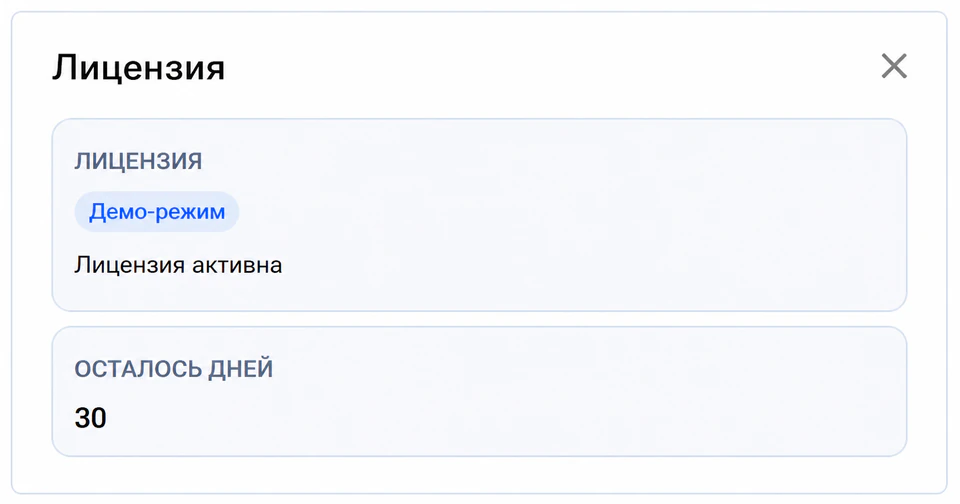
Open Help (Справка) → License (Лицензия) and check that trial mode is active. If the request could not be completed, select Retry request (Повторить запрос) in the Automatic trial license (Автоматическая триальная лицензия) section.
Activate a purchased license
- Open Help → License.
- Select Activate (Активировать).
- Select Studio as the product.
- Enter the registration key and customer details.
- Send the online request and wait for confirmation that activation succeeded.
The license is saved locally after a successful request, and its status is updated in the same window. See Licensing for the full procedure.
Check that Studio is ready
Check that you can open the sample library, create a new template, open a saved template, connect an Excel or CSV file, and preview a label. If these actions are available, the service and interface are working and the application has read the license status.
If the interface does not open
- Open AxioLabel Studio again from the Start menu.
- Check that Windows has a default browser.
- In Windows Services, check that the AxioLabel service is running.
- If it is stopped, start it with administrator rights or restart the computer.
If the problem persists, contact your system administrator and check whether security software is blocking the local connection.
Next steps
Read Trial mode for the trial conditions. To work with your own variable data, continue to Printing labels from Excel and CSV.