
Operations
Updating AxioLabel Studio
Check the available version and update an activated Studio installation while preserving your license, settings, and templates.
Check the license status
Updates are available only for activated Studio installations. Checking for and installing updates is not supported in trial mode.
Updates for a purchased license are free without a time limit. See Licensing for registration key activation.
Check for an update in Studio
- Open Help (Справка) in the left menu.
- Select About (О программе).
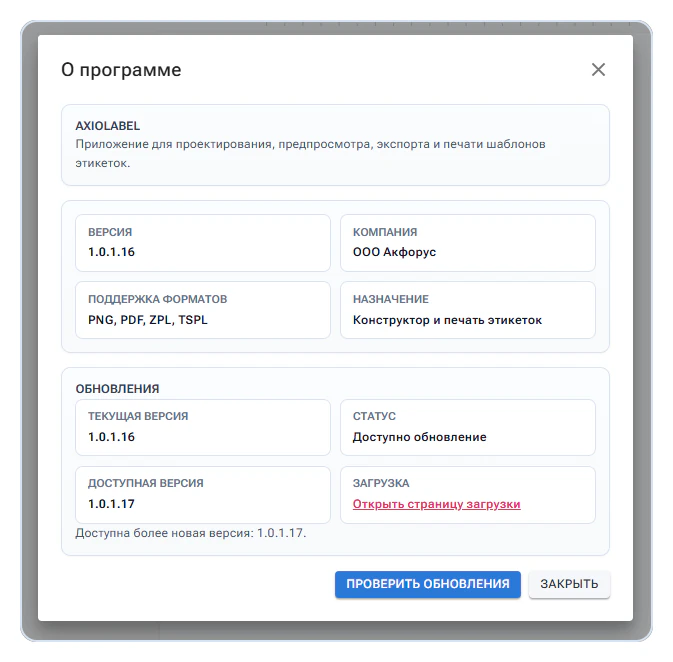
- In Updates (Обновления), select Check for updates (Проверить обновления).
Studio shows the installed version, the available version, and the update status. If you have the latest published version, it shows Up to date (Актуальная версия).
If a newer version is available, it shows Update available (Доступно обновление), the version number, and Open download page (Открыть страницу загрузки). Follow that link to download the current installer.
The screenshot below shows the Russian interface.
Review release information
The current Studio release page lists the version number, release date, installer size, supported Windows versions, and SHA-256 checksum. Read the release notes for changes and known limitations before installing a new build.
Prepare for the update
- Save open templates.
- Finish your current work in Studio.
- Tell users of additional workstations that the application will be temporarily unavailable.
- Back up user templates if needed.
You do not need to uninstall the existing version. Install the update over it.
Download the installer
Download updates from Downloads on the official AxioLabel website. If needed, compare the downloaded file's SHA-256 checksum with the value shown for the release. A match confirms that the file was downloaded completely and has not changed.
Install the update
- Run the downloaded installer.
- Approve the Windows prompt if it asks to allow changes on the computer.
- Follow the installer instructions.
- Wait for the update to finish.
The installer automatically stops the running AxioLabel service, replaces the application components, and starts the service again. The license, settings, and user templates are retained.
Verify the result
Open Studio from the Start menu shortcut. Check the installed version, license status, an existing template, your Excel or CSV file, and the label preview. Print a test label if the release changes printing. Refresh the browser page if it was open during the update.
If Studio does not open
- Wait until the installer has finished.
- Check that the AxioLabel service is running.
- Open Studio again from the Start menu.
- Restart the computer if needed.
- Check that the installed version matches the release you downloaded.
If the problem persists, record the installed version and error description for your system administrator or technical support.